
Framer Development
Saket Khare
CTO & Co-Founder
You’ve been on your current platform for a while. Maybe it was fine when you started. But somewhere between the plugins, the sluggish load times, the limited animations, and the design compromises, something clicked. You started seeing those buttery-smooth Framer sites and thought: “Why does my website feel so outdated compared to that?”
That’s exactly why you’re here. And you’re not alone.
Framer has grown from a prototyping tool into a full-fledged website builder that’s genuinely changing how designers and founders think about web presence. According to BuiltWith data, Framer adoption has grown by over 300% in the last two years, and a significant chunk of that growth is people migrating from WordPress, Webflow, and Wix. The pattern is consistent: designers want more creative freedom, founders want faster performance, and nobody wants to wrestle with plugin stacks anymore.
Before we get into the step-by-step migration process, the honest truth is this: migrating to Framer is not complicated, but it does require a plan. Done right, it takes a few days. Done without a plan, it can take a few weeks and a lot of headache. This guide is built to make sure you’re in the first camp.
Why Migrate to Framer? The Real Reasons People Switch
Let’s skip the marketing language and talk about what’s actually driving the switch to Framer.
Performance That’s Not an Afterthought
Framer sites are built on React and hosted on a global CDN by default. No plugins. No bloated themes. A well-built Framer site regularly scores 95+ on Google PageSpeed, without any optimization tricks.
Compare that to a WordPress site with 15 plugins, a heavyweight theme, and shared hosting. Most score between 40 and 65 on mobile. The gap is real, and it directly affects your SEO and bounce rate.
Design Freedom Without Fighting the Tool
Framer works like a design tool, because it basically is one. You’re not working inside templates and fighting constraints. You’re drawing layouts, setting breakpoints, and building interactions the way you’d think about them in Figma. For designers, this is the biggest pull.
No Plugin Dependency
WordPress sites often have 10, 20, sometimes 40+ plugins running. Each one is a potential conflict, a security vulnerability, and a performance drain. Framer handles most of what those plugins do natively, forms, CMS, animations, SEO settings, custom domains.
The CMS Is Actually Usable
Framer’s CMS lets non-technical users manage content without touching the design. It’s not as powerful as a headless CMS, but for most marketing sites and portfolio pages, it’s more than enough. And it’s genuinely easy to use.
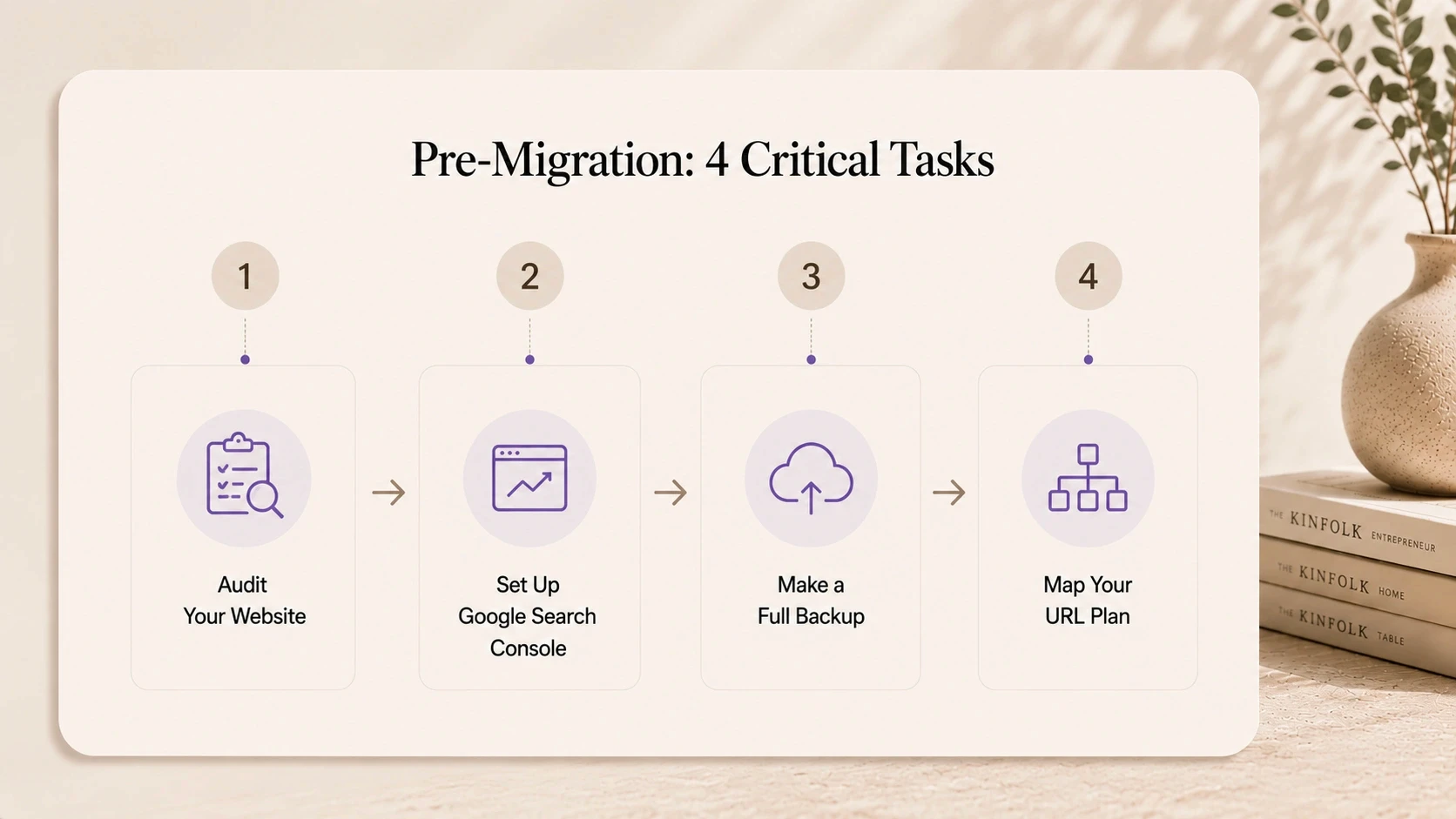
What to Do Before You Start Your Framer Migration
Rushing into a migration without prep is how things go wrong. Take a day to do this groundwork, it saves a week later.
Audit Your Current Site
Before you move anything, document everything. Go through your current site and list:
• All pages and their URLs
• Blog posts or CMS content
• Forms and where they submit
• Third-party scripts (analytics, chat, tracking pixels)
• Custom fonts and brand assets
• Redirects already in place
This becomes your migration checklist. Nothing gets left behind if it’s on the list.
Set Up Google Search Console First
If your site has any existing SEO value, rankings, backlinks, indexed pages, you need to protect it during the move. Set up Google Search Console before migration if you haven’t already. You’ll need it to monitor indexing after the switch.
Back Up Everything
Before you make any changes, back up your existing site fully. For WordPress, use a plugin like UpdraftPlus. For Webflow, export the CMS content as a CSV and download the exported code. For Wix, export what you can and screenshot the rest, Wix exports are limited.
Decide on Your URL Structure
If your current site has pages with strong SEO rankings, keep the same URL structure in Framer where possible. Changing URLs without setting up redirects is the single most common reason migrations tank a site’s search rankings.
Migrating from WordPress to Framer
WordPress to Framer is the most common migration path right now. The mindset shift is the hardest part, you’re moving from a CMS-first platform to a design-first one.
Content Migration
WordPress doesn’t have a direct export to Framer. Here’s the practical workflow:
1. Export your WordPress content as XML (Tools → Export)
2. Use a tool like WP All Export or Wordable to convert posts to a clean CSV
3. Import that CSV into Framer’s CMS
4. Rebuild your blog template in Framer using the CMS collection
For pages (not blog posts), you’ll recreate these in Framer directly. For most sites, the homepage, about page, services, and contact pages are rebuilt from scratch, which is actually faster than trying to port them over.
What WordPress Does That Framer Doesn’t
Be aware of these gaps before you switch to Framer:
• E-commerce: Framer isn’t a WooCommerce replacement. If you have an online store, stay on WordPress or migrate to Shopify instead.
• Complex forms: Framer’s native forms handle basic submissions. Complex multi-step forms need a third-party tool like Tally or Typeform embedded.
• User accounts/login: Framer doesn’t support user authentication natively. If your WordPress site has member areas, this needs a separate solution.
If none of those apply to you, the migration is straightforward.
Migrating from Webflow to Framer
This is the migration that sparks the most debate in the design community. Both are design-forward tools. Both are used by serious designers. So why would anyone move from Webflow to Framer?
The main reasons: Framer’s interaction system is more intuitive, the performance edge is real, and for many designers, Framer just feels closer to how they actually think when designing.
What Carries Over Easily
• Static page content (text, images, layout structure)
• Blog posts via CMS CSV export/import
• Design system elements, recreate these in Framer’s component system
What Needs to Be Rebuilt
• Webflow’s Interactions (recreate in Framer’s native animation system)
• CMS relationships and multi-reference fields (Framer’s CMS is simpler)
• Custom code embeds (these usually carry over fine)
• E-commerce (Framer has no equivalent)
The Honest Comparison
Feature | Webflow | Framer |
Design flexibility | High | Very High |
Animation system | Good | Excellent |
CMS power | Strong | Moderate |
Performance | Good | Excellent |
Learning curve | Steep | Moderate |
E-commerce | Yes | No |
Price | Higher | Lower |
For design-led teams building marketing sites, Framer wins on almost every metric that matters. For content-heavy or e-commerce sites, Webflow still has the edge.
Migrating from Wix to Framer
Wix to Framer is the biggest visual and performance upgrade you’ll experience. The gap between what Wix allows you to build and what Framer allows is enormous.
What to Expect
Wix doesn’t offer clean exports. There’s no “export to Framer” button. The migration workflow looks like this:
5. Screenshot or document every page layout in detail
6. Export any blog content manually or via third-party export tools
7. Download all images and brand assets from your Wix media library
8. Rebuild in Framer from the ground up
This sounds more painful than it is. Most Wix sites don’t have a complex page structure. A typical 5-page Wix site can be rebuilt in Framer in 2–3 days by an experienced designer.
The Performance Jump Is Significant
Wix sites are notoriously heavy. The average Wix site takes 4–6 seconds to load on mobile. A comparable Framer site typically loads in under 1.5 seconds. That difference directly impacts your Google rankings and your user experience.
Setting Up Redirects: The Step Everyone Skips
This is the most technically important part of any Framer migration, and the most commonly skipped.
If you’re changing any URLs, even slightly, you need 301 redirects. A 301 redirect tells Google that a page has permanently moved. Without it, every page that changes URLs starts from zero in search rankings.
Here’s how redirects work in Framer:
9. Go to Site Settings → SEO
10. Add redirects under the “Redirects” section
11. Map each old URL to its new equivalent
For large sites with many redirects, build your redirect map in a spreadsheet first. Old URL in one column, new URL in the second. Then input them systematically.
One missed redirect on a high-traffic page can mean a meaningful drop in organic traffic. Take the time to do this properly.
DNS and Domain Transfer to Framer
Moving your custom domain to Framer is straightforward, but the timing matters.
The Process
12. In Framer, go to Site Settings → Custom Domain
13. Add your domain and copy the DNS records Framer provides
14. Log into your domain registrar (GoDaddy, Namecheap, Cloudflare, etc.)
15. Update your DNS records to point to Framer
16. DNS propagation takes anywhere from a few minutes to 48 hours
How to Avoid Downtime
The key is to have your Framer site fully ready before you update DNS. Don’t start building on Framer and then switch DNS mid-build. Complete the build, do a full QA check on the Framer preview URL, and only then point your domain over.
If your current site is on WordPress, keep it running until DNS propagation is confirmed. Once Framer is live, you can decommission the WordPress install.
SEO Checklist After You Migrate to Framer
Going live isn’t the end of the process. Run through this checklist within 48 hours of launch:
☐ Submit your sitemap to Google Search Console (Framer auto-generates one at yoursite.com/sitemap.xml)
☐ Check that all major pages are indexed correctly
☐ Verify all redirects are working as expected
☐ Confirm meta titles and descriptions are set for every page
☐ Check Open Graph images are loading correctly for social sharing
☐ Test site speed on PageSpeed Insights
☐ Confirm your analytics script is firing correctly
☐ Test contact forms are submitting and receiving emails
Most SEO issues after a migration are either missing redirects or missing meta data. Framer’s SEO settings panel is clean and straightforward, there’s no excuse for leaving these blank.
How Createxp Handles Framer Migrations
Most studios that offer Framer development either build new sites or do surface-level redesigns. Very few approach migration as a technical and strategic process, which is exactly what it is.
Createxp has migrated dozens of sites to Framer across all three major platforms: WordPress, Webflow, and Wix. The process is built around two things: protecting what already works (SEO, content, brand) and using the migration as an opportunity to improve what doesn’t.
Here’s how the Createxp migration process works:
Discovery & Audit
The team starts with a full audit of the existing site, page inventory, SEO value, content structure, third-party integrations, and technical setup. Nothing moves until there’s a complete picture of what’s there.
Redirect Architecture
Before any design work starts, the redirect map is built. Every URL change is planned and documented. This is the step that prevents post-launch ranking drops.
Design & Build in Framer
The new site is built in Framer with a focus on performance, design precision, and brand consistency. For clients with an existing Figma design, Createxp’s developers translate it to Framer with pixel-level fidelity.
QA & Launch
Before DNS is transferred, every page is tested across devices and browsers. Forms, animations, CMS content, and performance scores are all verified. Launch is a controlled, planned event, not a hope-and-pray.
Post-Launch Monitoring
The team monitors Search Console for the first two weeks after launch. Any indexing issues, redirect errors, or crawl anomalies are caught and fixed fast.
What makes Createxp’s approach different is that the team has done this enough times to know exactly where migrations go wrong. The pitfalls are mapped. The process is designed to avoid them.
Your Next Site Deserves to Be on Framer Skip the guesswork. Migrate properly, protect your SEO, and launch fast. |
Key Takeaways
• Framer migration is achievable in days, not weeks, but only with a proper plan. Prep work saves more time than it costs.
• Always audit your current site before migrating: pages, URLs, content, scripts, and redirects need to be mapped before anything moves.
• Redirects are the most technically critical part of migration. Every changed URL needs a 301 redirect or you risk losing search rankings.
• WordPress migration requires a CMS content export workflow. Webflow migration requires rebuilding interactions. Wix migration is a full rebuild, but it’s faster than it sounds.
• Framer doesn’t support e-commerce or user authentication natively. If these are core to your site, evaluate whether Framer is the right fit first.
• Transfer DNS only after the Framer site is fully built and QA-tested. Never switch DNS mid-build.
• Within 48 hours of launch, submit your sitemap to Google Search Console and verify all redirects, meta data, and form submissions are working correctly.
Frequently Asked Questions
How long does it take to migrate to Framer?
For a typical 5–10 page marketing site, a Framer migration takes 3–7 days with an experienced team. This includes audit, build, redirects, and DNS transfer. Larger sites with extensive CMS content or complex layouts take 2–4 weeks.
Will migrating to Framer hurt my SEO?
Only if redirects aren’t set up correctly. A properly planned migration, with 301 redirects for every changed URL and a sitemap submission after launch, should have minimal SEO impact. Some sites even see improvements in rankings due to Framer’s superior Core Web Vitals scores.
Can I migrate my blog from WordPress to Framer?
Yes. Export your WordPress posts as XML or CSV, clean the content, and import it into Framer’s CMS. You’ll need to rebuild your blog template in Framer, but the content itself transfers cleanly. The process takes a few hours for most sites.
Is Framer better than Webflow?
For design-led marketing sites, Framer generally wins on animation quality, performance, and ease of use. For content-heavy sites, complex CMS requirements, or e-commerce, Webflow is still more capable. The right answer depends on what your site actually needs to do.
Does Framer have a CMS?
Yes. Framer has a built-in CMS that handles collections, filtering, and dynamic pages. It’s cleaner and simpler than Webflow’s CMS, but less powerful for complex content architectures. For most marketing sites and blogs, it’s more than enough.
What happens to my domain when I migrate to Framer?
Your domain stays with your registrar. You simply update the DNS records to point to Framer. The domain itself doesn’t move, only where it directs traffic. Most DNS changes propagate within a few hours, though some registrars take up to 48 hours.
Is it possible to migrate from Wix to Framer?
Yes, though it’s a full rebuild rather than a direct export. Wix doesn’t offer clean migration tools. The practical approach is to document your current layouts, export your content and media, and rebuild in Framer. For most Wix sites, this is 2–4 days of focused work.
Warning: Working With Us May Trigger Unstoppable Momentum